Software Download

Install the Latest Printer Drivers

Drivers are the bridge between your computer and your printer. Installing the correct, up-to-date drivers ensures optimal print quality, speeds, and unlocks all the advanced scanning/printing features of your hardware.
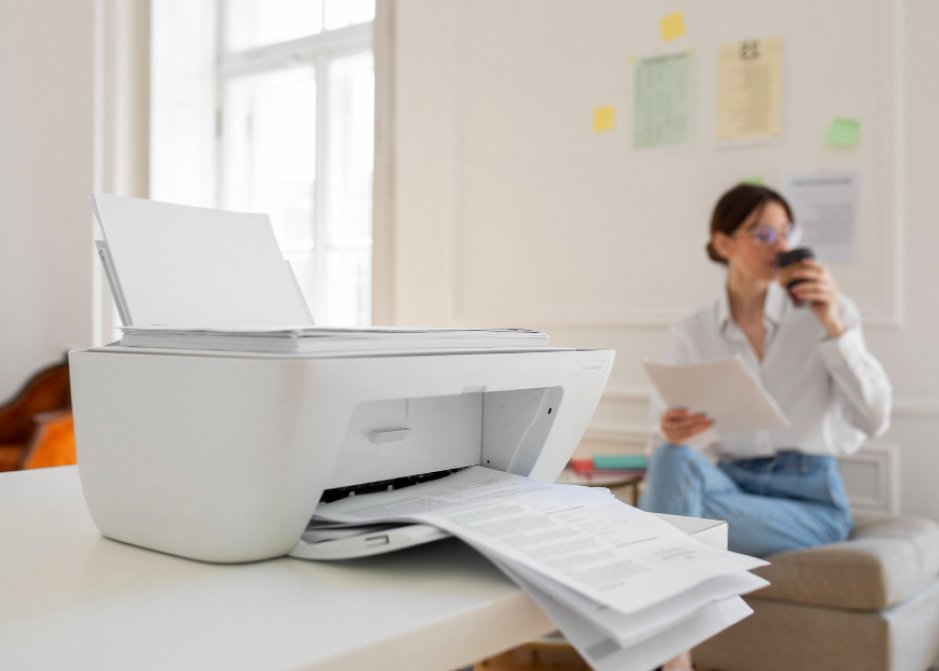
Automatic: Go to Windows Settings > Devices (or Bluetooth & devices) > Printers & Scanners. Click 'Add a printer or scanner'. Wait for your printer's name to appear on the list, click it, and select 'Add device'. Windows will automatically query its database and download the required basic drivers.

Manual: Visit the official manufacturer's website, navigate to the Support/Downloads section, enter your printer's exact model number, and download the `.exe` driver package. Run the installer and follow the on-screen prompts.

Most modern printers support Apple AirPrint, which requires no extra drivers. Open System Settings > Printers & Scanners. Click the 'Add Printer, Scanner, or Fax' button (or the '+' icon). Select your printer from the Default list. Make sure the 'Use' dropdown is set to 'AirPrint' or the specific printer model, and click Add.

While basic OS drivers allow you to print, they often lack support for advanced features. To utilize features like high-resolution scanning to PDF, faxing, and ink-level monitoring, we strongly recommend downloading the 'Full Feature Software Suite' directly from the manufacturer's official support website rather than relying solely on default OS drivers.
Driver Install

Driver Installation Failing?

OS updates can often corrupt existing driver files. If your installation is freezing or failing, our remote support team can cleanly remove old registries and install the correct software.

Contact Support Now