Network Connectivity

Connect Your Printer to Wi-Fi

Printing wirelessly from your laptop, smartphone, or tablet is convenient and essential. Learn how to securely connect your printer to your home or office wireless network using WPS, manual LCD setup, or a mobile app.
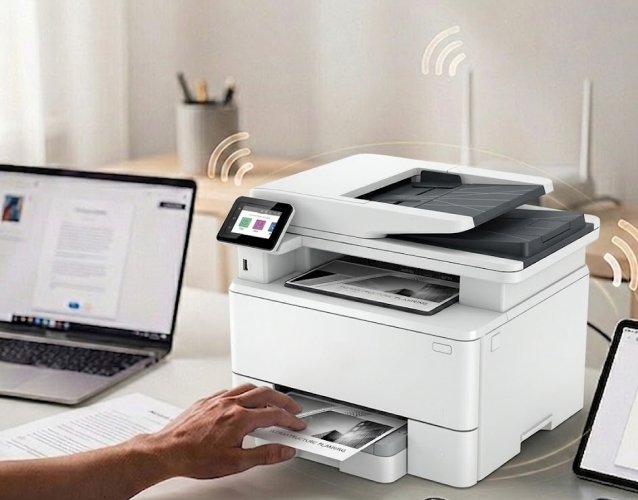
WPS is the fastest way to connect. Locate the WPS button on your router (often indicated by a lock icon or circular arrows). Press and hold the WPS button on your router for 3 to 5 seconds until the WPS light begins flashing. Within 2 minutes, go to your printer and press the Wi-Fi or WPS button (or select 'WPS Setup' in the network menu). The printer will automatically negotiate the security keys and connect securely to your network without needing a password.

If your printer has a touchscreen or LCD menu: Navigate to 'Settings' (the gear icon) > 'Network' or 'Wireless Settings'. Select 'Wireless Setup Wizard'. The printer will scan for nearby networks. Select your network name (SSID) from the list. Use the on-screen keyboard to carefully enter your Wi-Fi password (remembering that passwords are case-sensitive). Press 'Done' or 'Connect' to finalize the connection.

Download the official printer app (e.g., HP Smart, Canon PRINT, Epson iPrint) from the iOS App Store or Google Play Store. Ensure your smartphone is connected to the Wi-Fi network you want the printer to join, and turn on Bluetooth. Open the app, click 'Add Printer', and the app will discover the new printer via Bluetooth. It will seamlessly transfer your network credentials over to the printer to get it online.
Wireless Setup

Router Not Cooperating?

Wireless networks can be tricky. Whether it's a 2.4GHz/5GHz band issue or a hidden SSID, our network specialists can get you connected.

Contact Support Now