Hardware Diagnostics

Troubleshooting Common Issues

Printers have many moving parts, which means hardware errors do occur. Find quick, safe solutions below to handle common mechanical printing problems like paper jams, streaks, or cartridge recognition errors.
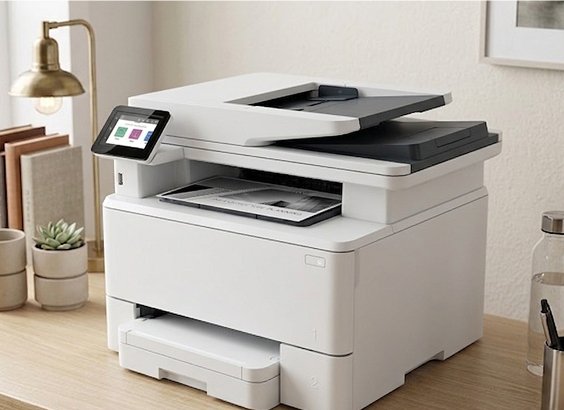
First, turn off the printer. Open all accessible doors (front cover, rear access door, and the document feeder lid if applicable). Gently pull the stuck paper straight out along the natural paper path using both hands to avoid tearing it. Never pull paper out backward through the feed path, as this strips the gears and permanently damages the rollers.

If your prints look faded or have horizontal blank lines running through them, this usually indicates clogged printhead nozzles (especially common if the printer hasn't been used in a few weeks). Run the 'Clean Printhead' utility from your printer's LCD maintenance menu or desktop software suite. You may need to run this cleaning cycle 2 or 3 times to fully unclog dried ink.

Remove the problematic cartridge. Locate the copper electrical contacts on the back of the cartridge and the corresponding pins inside the printer carriage. Wipe both gently with a lint-free cloth lightly moistened with distilled water to remove dust or ink residue. Let them air dry for 3 minutes, then firmly reinsert the cartridge and restart the printer.
Troubleshooting Printer

Hardware Issues Persisting?

Some internal jams or printhead failures require deeper diagnostic checks. Contact our support team for an advanced evaluation of your hardware before attempting disassembly.

Contact Support Now