Connection Troubleshooting

Fixing a Printer That Shows 'Offline'

It is incredibly frustrating when you need to print but your computer insists the printer is offline. This happens when the communication link between your PC and the printer is broken. Try these steps to restore the connection.
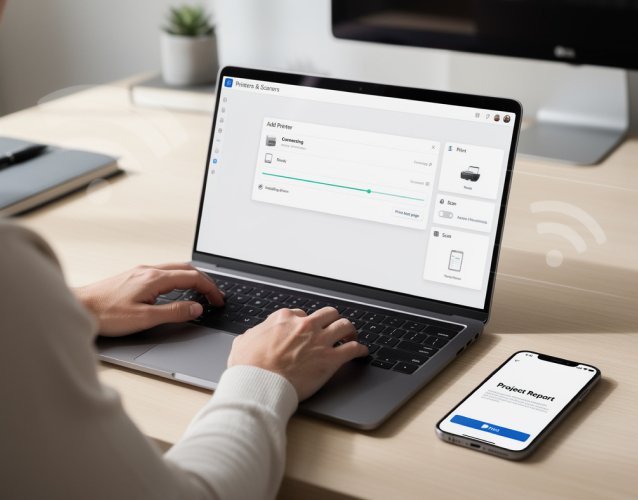
First, simply restart both your computer and your printer. Ensure the printer is completely powered on and hasn't gone into a deep sleep mode (press the power button once to wake it). If you are using a USB cable, unplug it and plug it into a different USB port on your computer. If you are using Wi-Fi, look at the printer's display panel—ensure the wireless indicator light is solid blue (not blinking) which confirms it is actively connected to your router.

Sometimes Windows manually flags the printer as offline. Open Settings > Devices > Printers & scanners. Click your printer, then click 'Open queue'. A small window will appear. Click on the word 'Printer' in the top menu bar. Look down the dropdown list for 'Use Printer Offline'. If there is a checkmark next to it, click it to remove the checkmark.

A corrupt or stuck print job can freeze the entire system, causing the printer to appear offline. Open the print queue (as described above), right-click the empty space (or select the 'Printer' menu), and choose 'Cancel All Documents'. If the documents refuse to delete, you may need to restart the Print Spooler service via the Windows Services (`services.msc`) application.
Printer Offline Error

Still Showing Offline?

IP address conflicts and corrupt spooler registries are incredibly common. Don't waste hours frustrated—our experts can remote into your system and resolve network communication issues instantly.

Get Remote Assistance